
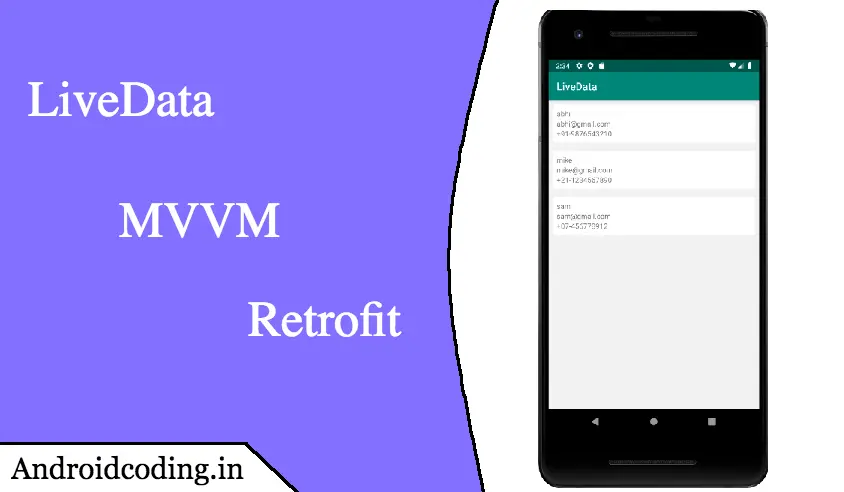
For the initial part of tutorial on android livedata please refer the link provided
https://stage.androidcoding.in/2020/05/05/livedata_tutorial/
We have discussed live data related information in the above tutorial if you are a beginner i suggest you to go through the above tutorial on android livedata.
Table of Contents
Android livedata video tutorial :
Go through the below tutorial for more interesting updates.
View-Model :
Using the UserRepository process the data and emit the data to View.View model don’t have direct reference of the views where as views has direct reference of the view model.
View model emit data and view fetch the data using observers created at the time of reference to the view model.
import android.app.Application;

import androidx.annotation.NonNull;
import androidx.lifecycle.AndroidViewModel;
import androidx.lifecycle.LiveData;

import com.abhishek.livedata.Model.User;
import com.abhishek.livedata.Repository.UserRepository;

import java.util.List;

public class MainViewModel extends AndroidViewModel {
    private UserRepository userRepository;
    public MainViewModel(@NonNull Application application) {
        super(application);
        userRepository = new UserRepository(application);
    }
    public LiveData<List<User>> getAllUsers() {
        return userRepository.getMutableLiveData();
    }
}
View :
Create a row to display user data i.e., name, email and phone number using the text fields as shown below.
user_row_item.xml
<?xml version="1.0" encoding="utf-8"?>
<LinearLayout
    xmlns:android="https://schemas.android.com/apk/res/android"
    android:layout_width="match_parent"
    android:layout_height="wrap_content"
    android:layout_marginBottom="16dp"
    android:background="#fff"
    android:orientation="vertical"
    android:padding="8dp">

    <TextView
        android:id="@+id/txt_name"
        android:layout_width="match_parent"
        android:layout_height="wrap_content"/>

    <TextView
        android:id="@+id/txt_email"
        android:layout_width="match_parent"
        android:layout_height="wrap_content"/>

    <TextView
        android:id="@+id/txt_phone"
        android:layout_width="match_parent"
        android:layout_height="wrap_content"/>

</LinearLayout>
UserAdapter :
With the adapter process the data user arraylist and generate view.
import android.view.LayoutInflater;
import android.view.View;
import android.view.ViewGroup;
import android.widget.TextView;
import androidx.recyclerview.widget.RecyclerView;
import com.abhishek.livedata.Model.User;
import com.abhishek.livedata.R;
import java.util.List;

public class UserAdapter extends RecyclerView.Adapter<UserAdapter.BaseViewHolder> {
    private static final String TAG = "Adapter";
    private List<User> userList;
    public UserAdapter(List<User> userList) {
        this.userList = userList;
    }
    @Override
    public void onBindViewHolder(BaseViewHolder holder, int position) {
        holder.onBind(position);
    }
    @Override
    public BaseViewHolder onCreateViewHolder(ViewGroup parent, int viewType) {
        return new ViewHolder(
                LayoutInflater.from(parent.getContext()).inflate(R.layout.user_row_item, parent, false));
    }
    @Override
    public int getItemViewType(int position) {
        return 0;
    }
    @Override
    public int getItemCount() {
        if (userList != null && userList.size() > 0) {
            return userList.size();
        } else {
            return 0;
        }
    }
    public class ViewHolder extends BaseViewHolder {

        TextView txtName;
        TextView txtEmail;
        TextView txtPhone;
        public ViewHolder(View itemView) {
            super(itemView);

            txtName = itemView.findViewById(R.id.txt_name);
            txtEmail = itemView.findViewById(R.id.txt_email);
            txtPhone = itemView.findViewById(R.id.txt_phone);
        }
        protected void clear() {
            txtName.setText("");
            txtEmail.setText("");
            txtPhone.setText("");
        }
        public void onBind(int position) {
            super.onBind(position);
            final User user = userList.get(position);

            if (user.getName() != null) {
                txtName.setText(user.getName());
            }
            if (user.getEmail() != null) {
                txtEmail.setText(user.getEmail());
            }
            if (user.getPhone() != null) {
                txtPhone.setText(user.getPhone());
            }

        }
    }

    public abstract class BaseViewHolder extends RecyclerView.ViewHolder {
        private int mCurrentPosition;
        public BaseViewHolder(View itemView) {
            super(itemView);
        }
        protected abstract void clear();
        public void onBind(int position) {
            mCurrentPosition = position;
            clear();
        }
        public int getCurrentPosition() {
            return mCurrentPosition;
        }
    }
}
activity_main.xml :
Add a SwipeRefreshLayout and RecyclerView to the layout using which we are refreshing the views every time the data is refreshed i.e., reloaded.
<?xml version="1.0" encoding="utf-8"?>
<androidx.constraintlayout.widget.ConstraintLayout xmlns:android="https://schemas.android.com/apk/res/android"
    xmlns:app="https://schemas.android.com/apk/res-auto"
    xmlns:tools="https://schemas.android.com/tools"
    android:layout_width="match_parent"
    android:layout_height="match_parent"
    android:background="#f2f2f2"
    android:padding="8dp"
    tools:context=".View.Activity.MainActivity">

    <androidx.swiperefreshlayout.widget.SwipeRefreshLayout
        android:id="@+id/swiperefresh"
        android:layout_width="0dp"
        android:layout_height="0dp"
        app:layout_constraintBottom_toBottomOf="parent"
        app:layout_constraintEnd_toEndOf="parent"
        app:layout_constraintStart_toStartOf="parent"
        app:layout_constraintTop_toTopOf="parent">

        <androidx.recyclerview.widget.RecyclerView
            android:id="@+id/recyclerView"
            android:layout_width="match_parent"
            android:layout_height="match_parent" />

    </androidx.swiperefreshlayout.widget.SwipeRefreshLayout>

</androidx.constraintlayout.widget.ConstraintLayout>
MainActivity.class :
Initialize the view model and view components we are following a MVVM architeture, so we need to initialize the components before start using android livedata.
mainViewModel = ViewModelProviders.of(this).get(MainViewModel.class);
swipeRefresh = findViewById(R.id.swiperefresh);
recyclerView = findViewById(R.id.recyclerView);
For better practice we can use View binding for binding UI components to the view also we are using a swipe to refresh view here to refresh the data you can use it with android livedata
We will be enabling or disabling the swipe view before and after the android livedata is loaded onto the view so that user can view the on going process.
Enable swipe refresh
swipeRefresh.setRefreshing(true);
Disable in the onChanged method
swipeRefresh.setRefreshing(false);
import android.content.res.Configuration;
import android.os.Bundle;
import androidx.annotation.Nullable;
import androidx.appcompat.app.AppCompatActivity;
import androidx.lifecycle.Observer;
import androidx.lifecycle.ViewModelProviders;
import androidx.recyclerview.widget.DefaultItemAnimator;
import androidx.recyclerview.widget.GridLayoutManager;
import androidx.recyclerview.widget.LinearLayoutManager;
import androidx.recyclerview.widget.RecyclerView;
import androidx.swiperefreshlayout.widget.SwipeRefreshLayout;

import com.abhishek.livedata.View.Adapter.UserAdapter;
import com.abhishek.livedata.Model.User;
import com.abhishek.livedata.R;
import com.abhishek.livedata.ViewModel.MainViewModel;

import java.util.List;
public class MainActivity extends AppCompatActivity {
    RecyclerView recyclerView;
    SwipeRefreshLayout swipeRefresh;
    private MainViewModel mainViewModel;
    UserAdapter userAdapter;
    @Override
    protected void onCreate(Bundle savedInstanceState) {
        super.onCreate(savedInstanceState);
        setContentView(R.layout.activity_main);

        swipeRefresh = findViewById(R.id.swiperefresh);
        recyclerView = findViewById(R.id.recyclerView);

        mainViewModel = ViewModelProviders.of(this).get(MainViewModel.class);

        getUserList();

        swipeRefresh.setOnRefreshListener(() -> {
            getUserList();
        });
    }

    public void getUserList() {
        swipeRefresh.setRefreshing(true);
        mainViewModel.getAllUsers().observe(this, new Observer<List<User>>() {
            @Override
            public void onChanged(@Nullable List<User> userList) {
                swipeRefresh.setRefreshing(false);
                setRecyclerView(userList);
            }
        });

    }
    private void setRecyclerView(List<User> userList) {
        userAdapter = new UserAdapter(userList);
        if (this.getResources().getConfiguration().orientation == Configuration.ORIENTATION_PORTRAIT) {
            recyclerView.setLayoutManager(new LinearLayoutManager(this));
        } else {
            recyclerView.setLayoutManager(new GridLayoutManager(this, 4));
        }
        recyclerView.setItemAnimator(new DefaultItemAnimator());
        recyclerView.setAdapter(userAdapter);
        userAdapter.notifyDataSetChanged();
    }
}
Android livedata output :
In the output we can find the android livedata usage with the help of recycler view where data is loaded.

If you have any query on this tutorial on android livedata do let us know in the comment section below.If you like this tutorial do like and share for more interesting tutorials.