
Cloud Firebase Firestore is Google’s flagship NoSQL database for mobile development. Unlike the traditional Realtime Database, Firestore offers a document-oriented structure that scales effortlessly.
In this guide, we will implement Firestore in Android from scratch, covering CRUD, security, and performance optimization.
Table of Contents
How to Integrate Firebase Firestore in Android Studio
Time needed: 15 minutes
Learn how to integrate Firebase Firestore in Android Studio from scratch. This step-by-step guide covers project configuration, dependency setup, and initializing the Firestore database instance for high-performance mobile apps.
- Connect to Firebase
Use the Firebase Assistant in Android Studio or the Console.
- Add Dependencies
implementation(“com.google.firebase:firebase-firestore-ktx”)
- Initialize
val db = Firebase.firestore
Why Cloud Firestore is the Best Choice for Android
Firebase firestore is used to store our data in this blog and retrieve it as a form of list.
Firestore is a better option when you try to store or retrieve data maintaining high security standards by google.
Not only security there is scalability, flexibility in handling data most importantly its a cloud platform providing ease of access for everyone.
There are better practices involved in storage of data and usage using realtime listeners which make your app highly flexible and async this is what makes your app user friendly.
And regarding maintenance and cost this is the better option for most of the developers who want to maintain quality and offer seamless integration.

Dependency’s
You need to integrate firebase into your project i have provided a detailed blog on firebase integration
Also make sure you are providing latest dependency’s if you are manually adding them to your project, we have added these 2 dependency’s and remaining are available by default.
implementation 'androidx.cardview:cardview:1.0.0'
implementation(platform("com.google.firebase:firebase-bom:33.9.0"))
implementation("com.google.firebase:firebase-firestore")
Firebase Firestore Video Tutorial :
Go through the below tutorial for more details on firestore implementation.
Project Structure :
The screen below depicts the project structure of firebase firestore
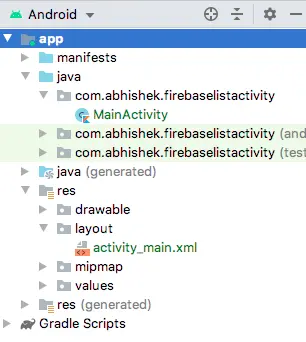
In this project i want to make you understand the usage of firestore easily so i am making it as simple as possible.In coming tutorials with this knowledge we can make complex projects.

Firebase Firestore Full Code
activity_main.xml
We need to add two button one for writing the data and other for reading the data.
<?xml version="1.0" encoding="utf-8"?>
<androidx.constraintlayout.widget.ConstraintLayout
    xmlns:android="https://schemas.android.com/apk/res/android"
    xmlns:app="https://schemas.android.com/apk/res-auto"
    xmlns:tools="https://schemas.android.com/tools"
    android:layout_width="match_parent"
    android:layout_height="match_parent"
    android:padding="50dp"
    tools:context=".MainActivity">

    <Button
        android:id="@+id/btn_write_data"
        android:layout_width="wrap_content"
        android:layout_height="wrap_content"
        android:layout_marginStart="28dp"
        android:layout_marginLeft="28dp"
        android:text="Write Data"
        app:layout_constraintBottom_toBottomOf="parent"
        app:layout_constraintStart_toStartOf="parent"
        app:layout_constraintTop_toTopOf="parent" />

    <Button
        android:id="@+id/btn_read_data"
        android:layout_width="wrap_content"
        android:layout_height="wrap_content"
        android:text="Read Data"
        app:layout_constraintBottom_toBottomOf="parent"
        app:layout_constraintEnd_toEndOf="parent"
        app:layout_constraintHorizontal_bias="0.546"
        app:layout_constraintStart_toEndOf="@+id/btn_write_data"
        app:layout_constraintTop_toTopOf="parent" />

</androidx.constraintlayout.widget.ConstraintLayout>
MainActivity
Initialize the firestore object
val db = Firebase.firestore
Initialize the buttons we are using kotlin synthetic binding here
btn_write_data.setOnClickListener(this)
btn_read_data.setOnClickListener(this)
writeData
Add data in firebase firestore, using add a listener to know the status of adding data we have used hashMap to store data and push it to firebase.
Create a collection named “users”
val user = hashMapOf(
    "id" to 2,
    "Abhi" to "Android Developer",
    "Email" to "admin@androidcoding.in",
    "facebook" to "androidcoding.in",
    "instagram" to "androidcoding.in"
)
db.collection("users")
    .add(user)
    .addOnSuccessListener { documentReference ->
        Log.d("UserUpload", "DocumentSnapshot added with ID: ${documentReference.id}")
    }
    .addOnFailureListener { e ->
        Log.w("UserUpload", "Error adding document", e)
    }
readData
db.collection("users")
    .get()
    .addOnSuccessListener { result ->
        Log.d("UserDownload", "Size " + result.size())
        for (document in result) {
            Log.d("UserDownload", "${document.id} => ${document.data}")
        }
    }
    .addOnFailureListener { exception ->
        Log.w("UserDownload", "Error getting documents.", exception)
    }
Read data from firestore.Using realtime listeners we can read data from collections “users”.

Full Code
Presenting the complete source code for Firestore integration in your app.
import android.os.Bundle;
import android.util.Log;
import android.view.View;
import androidx.appcompat.app.AppCompatActivity;
import com.google.firebase.firestore.ktx.firestore;
import com.google.firebase.ktx.Firebase;
import kotlinx.android.synthetic.main.activity_main.*;

class MainActivity : AppCompatActivity(), View.OnClickListener {
    val db = Firebase.firestore

    override fun onCreate(savedInstanceState: Bundle?) {
        super.onCreate(savedInstanceState)
        setContentView(R.layout.activity_main)

        btn_write_data.setOnClickListener(this)
        btn_read_data.setOnClickListener(this)
    }

    override fun onClick(v: View?) {
        when(v!!.id){
            R.id.btn_write_data -> {
                val user = hashMapOf(
                    "id" to 2,
                    "Abhi" to "Android Developer",
                    "Email" to "admin@androidcoding.in",
                    "facebook" to "androidcoding.in",
                    "instagram" to "androidcoding.in"
                )
                db.collection("users")
                    .add(user)
                    .addOnSuccessListener { documentReference ->
                        Log.d("UserUpload", "DocumentSnapshot added with ID: ${documentReference.id}")
                    }
                    .addOnFailureListener { e ->
                        Log.w("UserUpload", "Error adding document", e)
                    }
            }
            R.id.btn_read_data -> {
                db.collection("users")
                    .get()
                    .addOnSuccessListener { result ->
                        Log.d("UserDownload"," Size "+result.size())
                        for (document in result) {
                            Log.d("UserDownload", "${document.id} => ${document.data}")
                        }
                    }
                    .addOnFailureListener { exception ->
                        Log.w("UserDownload", "Error getting documents.", exception)
                    }
            }
        }
    }
}
FAQ
50,000 reads, 20,000 writes, and 20,000 deletes per day on the Spark Plan.
Yes, for most modern apps. Firestore has better scaling and more powerful querying capabilities.
Absolutely. It has built-in offline persistence that syncs data once the connection is restored.
If you have any questions about the Firestore tutorial, feel free to ask in the comment section below.
For additional engaging tutorials, be sure to like and share this content.