
Table of Contents
Android simple login :
In this tutorial i will explain how to make a Simple Login in android using username and password. Generally Login is used to restrict access and giving authorization to every user.Username and Password is used as login credentials.
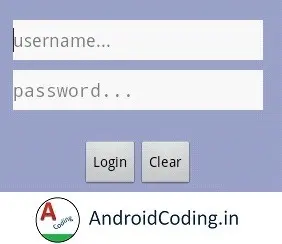
When user enters username and password it will be matched against predefined credentials here.
I have given predefined username and password and using them you can login.
You can also change them in MainActivity.java file. User will be sent to next screen after successful login and if login failed a toast is displayed.
MainActivity.java :
Providing the android simple login code implementation.
public class MainActivity extends Activity {

	Button loginbtn, clrbtn;
	EditText uname, pwd;
	String getuname, getpwd;

	@Override
	protected void onCreate(Bundle savedInstanceState) {
		super.onCreate(savedInstanceState);
		setContentView(R.layout.activity_main);

		loginbtn = (Button)findViewById(R.id.loginbtn);
		clrbtn = (Button)findViewById(R.id.clrbtn);

		uname = (EditText)findViewById(R.id.uname);
		pwd = (EditText)findViewById(R.id.pwd);

		loginbtn.setOnClickListener(new OnClickListener() {

            public void onClick(View v) {

            	getuname = uname.getText().toString();
            	getpwd = pwd.getText().toString();

            	if(getuname.matches("androidcoding") && getpwd.matches("androidcoding")){

            		Intent i = new Intent(MainActivity.this,HomeScreen.class);
            		startActivity(i);
            	} else {

            		Toast.makeText(MainActivity.this,
            			"enter correct username & password", Toast.LENGTH_LONG).show();

            	}

            }
            });

		clrbtn.setOnClickListener(new OnClickListener() {

            public void onClick(View v) {

            	uname.setText("");
            	pwd.setText("");

            }
            });

	}
activity_main.xml :
Now we will design login page i.e., activity_main.xml Adding username and password edittext, and buttons for sign-in and you can add many more… depending upon you functionality.
<LinearLayout xmlns:android="https://schemas.android.com/apk/res/android"
    xmlns:tools="https://schemas.android.com/tools"
    android:id="@+id/LinearLayout1"
    android:layout_width="match_parent"
    android:layout_height="match_parent"
    android:orientation="vertical"
    tools:context="com.androidcoding.abhi.simple_login.MainActivity" >

    <TextView
        android:id="@+id/textView"
        android:layout_width="wrap_content"
        android:layout_height="wrap_content"
        android:text="Login"
        android:layout_marginTop="80dp"
        android:layout_gravity="center"
        android:textAppearance="?android:attr/textAppearanceLarge" />


    <LinearLayout
        android:layout_width="match_parent"
        android:layout_height="wrap_content"
        android:orientation="vertical"
        android:layout_marginTop="50dp"
        android:background="#9DA7D0" >

        <EditText
        android:id="@+id/uname"
        android:layout_width="250dp"
        android:layout_height="40dp"
        android:layout_gravity="center"
        android:layout_marginTop="40dp"
        android:background="#ffffff"
        android:hint="username..." >

    </EditText>

        <EditText
        android:id="@+id/pwd"
        android:layout_width="250dp"
        android:layout_height="40dp"
        android:layout_gravity="center"
        android:layout_marginTop="10dp"
        android:layout_marginBottom="20dp"
        android:inputType="textPassword"
        android:background="#ffffff"
        android:hint="password..." >

    </EditText>

        <LinearLayout
            android:layout_width="match_parent"
            android:layout_height="wrap_content"
            android:orientation="horizontal"
            android:layout_marginTop="10dp"
            android:layout_marginBottom="20dp"
            android:gravity="center" >

        <Button
            android:id="@+id/loginbtn"
            android:layout_width="wrap_content"
            android:layout_height="wrap_content"
            android:text="Login" />

        <Button
            android:id="@+id/clrbtn"
            android:layout_width="wrap_content"
            android:layout_height="wrap_content"
            android:text="Clear" />
        </LinearLayout>

        <TextView
            android:id="@+id/textView1"
            android:layout_width="wrap_content"
            android:layout_height="wrap_content"
            android:textColor="#ffffff"
            android:textSize="20dp"
            android:text=" Username = androidcoding \n  Password = androidcoding" />

    </LinearLayout>

</LinearLayout>
HomeScreen.java :
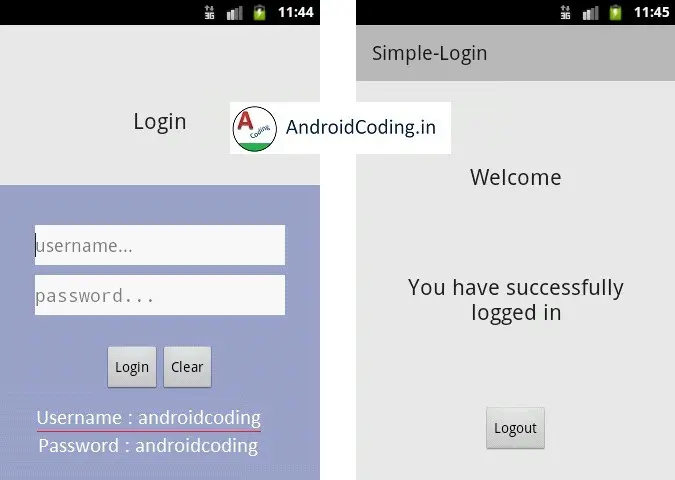
Design a home screen(layout) which should be appearing as a user login.Here generally we will give dashboard which will have options like logout and more…. You can add different screens or menu screen depending upon your usage but i have shown a simple message that user has successfully logged-in.
HomeScreen.java
public class HomeScreen extends ActionBarActivity {

	Button logout;

	@Override
	protected void onCreate(Bundle savedInstanceState) {
		super.onCreate(savedInstanceState);
		setContentView(R.layout.homescreen);

		logout = (Button)findViewById(R.id.logoutbtn);

		logout.setOnClickListener(new OnClickListener() {

            public void onClick(View v) {

            	Intent i = new Intent(HomeScreen.this,MainActivity.class);
        		startActivity(i);

            }
            });
	}
homescreen.xml
Adding designing homescreen by adding welcome message display successfully login textview and logout button.
homescreen.xml
<?xml version="1.0" encoding="utf-8"?>
<LinearLayout xmlns:android="https://schemas.android.com/apk/res/android"
    android:layout_width="match_parent"
    android:layout_height="match_parent"
    android:orientation="vertical" >

    <TextView
        android:id="@+id/textwelcome"
        android:layout_width="wrap_content"
        android:layout_height="wrap_content"
        android:text="Welcome"
        android:layout_marginTop="80dp"
        android:layout_gravity="center"
        android:textAppearance="?android:attr/textAppearanceLarge" />

     <TextView
        android:id="@+id/loggedin"
        android:layout_width="wrap_content"
        android:layout_height="wrap_content"
        android:text="You have successfully logged in"
        android:layout_marginTop="80dp"
        android:layout_marginLeft="20dp"
        android:layout_marginRight="20dp"
        android:gravity="center"
        android:layout_gravity="center"
        android:textAppearance="?android:attr/textAppearanceLarge" />

     <Button
         android:id="@+id/logoutbtn"
         android:layout_width="wrap_content"
         android:layout_height="wrap_content"
         android:text="Logout"
         android:layout_marginTop="80dp"
         android:layout_gravity="center" />

</LinearLayout>
AndroidManifest.xml :
Adding second screen to android manifest file
<?xml version="1.0" encoding="utf-8"?>
<manifest xmlns:android="https://schemas.android.com/apk/res/android"
    package="com.androidcoding.abhi.simple_login"
    android:versionCode="1"
    android:versionName="1.0" >

    <uses-sdk
        android:minSdkVersion="8"
        android:targetSdkVersion="21" />

    <application
        android:allowBackup="true"
        android:icon="@drawable/ic_launcher"
        android:label="@string/app_name"
        android:theme="@style/AppTheme" >
        <activity
            android:name="com.androidcoding.abhi.simple_login.MainActivity"
            android:label="@string/app_name" >
            <intent-filter>
                <action android:name="android.intent.action.MAIN" />

                <category android:name="android.intent.category.LAUNCHER" />
            </intent-filter>
        </activity>
        <activity
            android:name="com.androidcoding.abhi.simple_login.HomeScreen"
            android:label="@string/app_name" >
            <intent-filter>
                <action android:name="android.intent.action.MAIN" />

                <category android:name="android.intent.category.DEFAULT" />
            </intent-filter>
        </activity>
    </application>

</manifest>
Android simple login Output :
This screen depicts android simple-login
If you have any query’s in this post on Android simple login do let us know in comment section below.
Do like and share this tutorial for more interesting updates.