Table of Contents
Artificial Intelligence & Mobile Apps :
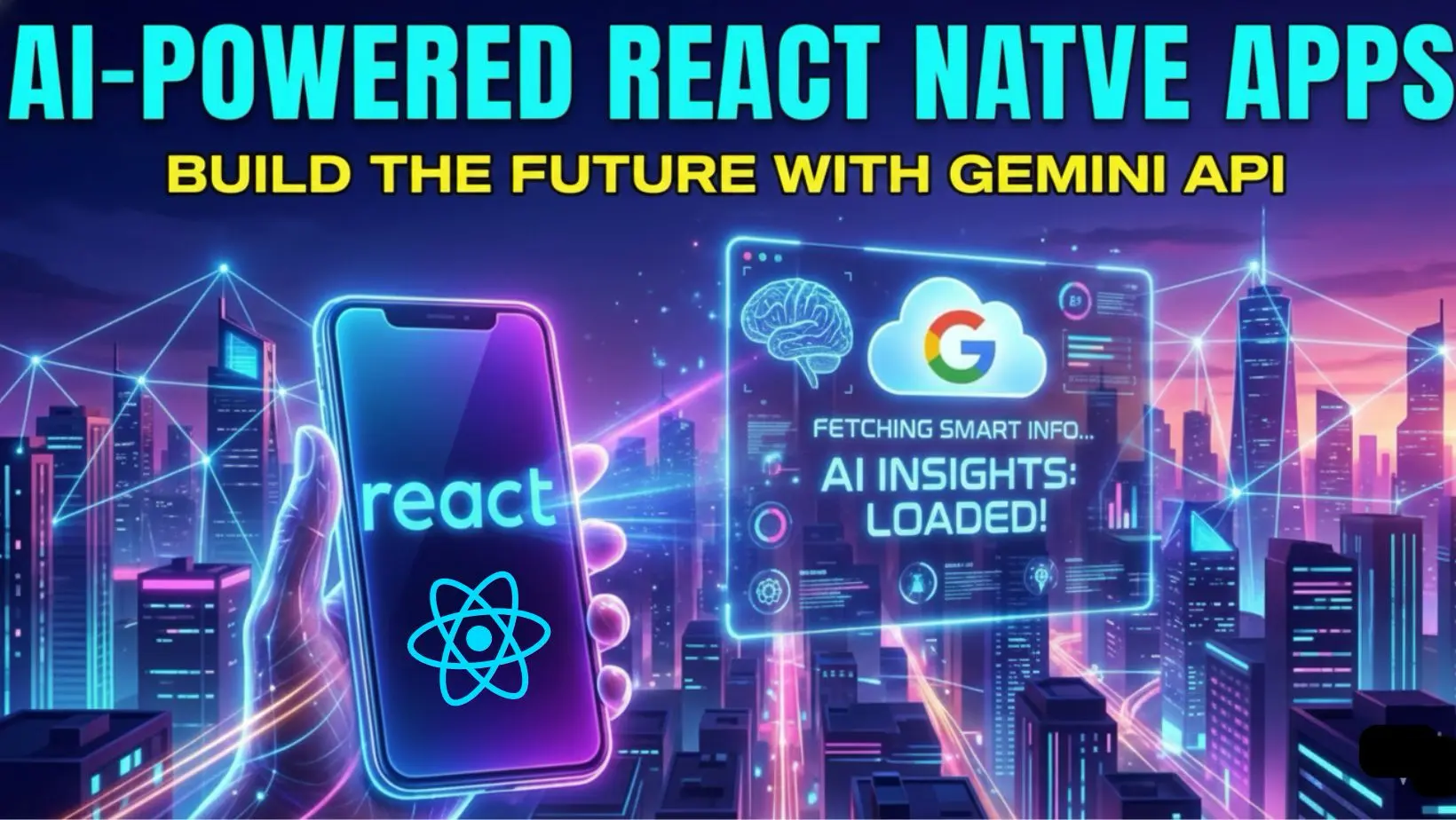
Artificial Intelligence is no longer limited to backend systems or web applications. With the introduction of Gemini API, developers can now build powerful AI-driven mobile apps using React Native Expo — without complex native setup or backend infrastructure.
In this tutorial, we’ll build a simple AI-powered React Native Expo app that accepts a prompt from the user and returns an intelligent response using Gemini.
Gemini API React Native Tutorial :
Learn how to integrate the Gemini API in a React Native app using Expo. Build a simple AI chat interface step-by-step with real API integration.
Why Use Gemini API with React Native Expo?
Here’s why this combination is powerful:
- 🚀 No backend required for basic AI interactions
- ⚡ Fast setup using Expo
- 🤖 Access to Google’s latest AI models
- 📱 Cross-platform (Android & iOS)
- 🔐 Secure API usage with environment variables
If you already build apps using React Native or Expo, adding AI capabilities becomes incredibly simple.
Prerequisites
Before we dive into the code, ensure you have the following ready:
- Node.js installed on your machine.
- Expo Go app on your phone (for testing).
- A Google Cloud / AI Studio account.
How to Connect Google Gemini API to React Native Expo
Time needed: 15 minutes
Follow these 4 simple steps to integrate Google’s Gemini AI into your React Native application using Expo and Axios for real-time AI responses.
- Initialize Expo Project
Open your terminal and run
npx create-expo-app gemini-ai-chatto set up your development environment. - Obtain Gemini API Key
Visit Google AI Studio, sign in with your Google account, and click “Get API Key” to generate your unique credentials.
- Install Axios Dependency
Run
npm install axiosin your project folder to enable the app to make HTTP requests to Google’s servers. - Implement API Logic
Create a
gemini.jsfile and use the code provided in this tutorial to send user prompts to the Geminiv1betaendpoint.
What We’ll Build in This Tutorial
We’ll create a basic AI app that:
- Takes user input (prompt)
- Sends it to Gemini API
- Receives an AI-generated response
- Displays the result cleanly in the UI
This foundation can later be extended into:
- AI chat apps
- Content generators
- Code assistants
- Learning or productivity apps
Create a React Native Expo Project
npx create-expo-app gemini-ai-chat --template blank
Get Gemini API Key
Before you can send prompts, you need an authorized API key from Google. This key acts as your credential to access the Gemini models. Follow the video guides below to set up your project in Google AI Studio.
How to Generate a Gemini API Key (Step-by-Step)
In this first video, we walk through the process of accessing Google AI Studio, creating a new API project, and generating your unique API key. This is the most critical step to get your environment ready.
What can Gemini 3 do???
I have tried few tasks using the Gemini 3 model and below are my observations
Install Required Dependencies
npm install axios
Complete Code Implementation :
In this section, we will implement the core logic for our AI application. We separate the API logic from the UI components to keep the code clean, modular, and easy to debug as your project grows.
gemini.js
This utility file handles the asynchronous communication with Google’s servers using Axios. It is responsible for wrapping your API key, setting the request parameters, and extracting the text response from the Gemini 2.5 Flash model.
import axios from "axios";

const GEMINI_API_KEY = "Your api key...";

export async function askGemini(prompt) {
    try{
        const response = await axios.post(
            "https://generativelanguage.googleapis.com/v1beta/models/gemini-2.5-flash:generateContent",
            {
                contents: [
                    {
                        role: "user",
                        parts: [{ text: prompt }]
                    }
                ]
            },
            {
                params: { key: GEMINI_API_KEY },
                headers: { "Content-Type": "application/json" },
                timeout: 35000
            }
        );

        const text = response.data?.candidates?.[0]?.content?.parts?.[0]?.text;

        if (!text) throw new Error(" Gemini returned empty text");
        return text;
    } catch (error) {
        console.error("Gemini API Error", error?.response?.data || error.message);
        throw error;
    }
}
app.js
In this tutorial, we’ll build a basic AI chat interface in React Native using Expo and the Gemini API.
Instead of building a complex UI or using third-party chat libraries, we’ll keep things minimal and focus on:
• Managing user input with useState
• Calling the Gemini API asynchronously
• Handling loading state
• Displaying AI responses dynamically
This example demonstrates how you can integrate AI into your mobile app with just a few components from react-native.
What This Component Does
This App component:
- Takes user input from a TextInput
- Sends that input to the askGemini() function
- Waits for the AI response
- Displays the response inside a scrollable view
- Shows a loading state while waiting
This is a foundation-level structure that you can later extend into:
- A full chat history
- Message bubbles
- Markdown support
- Streaming responses
- Voice input
State Management Used
We are using three pieces of state:
- input → stores user text
- response → stores AI output
- loading → controls button text while waiting
The handletask function is asynchronous because it waits for the Gemini API response.
import { useState } from "react";
import { View, Text, TextInput, Button, ScrollView } from 'react-native';
import { askGemini } from './gemini';

export default function App(){
    const [input, setInput] = useState("");
    const [response, setResponse] = useState("");
    const [loading, setLoading] = useState(false);

    const handletask = async () => {
        setLoading(true);
        const result = await askGemini(input);
        setResponse(result);
        setLoading(false);
    };

    return (
        <View style={{ flex:1, padding: 20}}>
            <Text style={{ fontSize: 22, fontWeight: "bold"}}>
                Gemini AI Chat
            </Text>

            <TextInput placeholder="Ask something..."
            value={input}
            onChangeText={setInput}
            style={{
                borderWidth: 1,
                marginVertical: 12,
                padding: 10,
                borderRadius: 8
            }}
            />

            <Button title={loading ? "Thinking...": "Ask Gemini"} onPress={handletask}/>

            <ScrollView style={{ marginTop: 20}}>
                <Text>{response}</Text>
            </ScrollView>
        </View>
    );
}
Final Thoughts
Integrating Gemini API with React Native Expo opens up endless possibilities for mobile developers. With minimal setup and no backend complexity, you can quickly prototype and ship intelligent mobile applications.
If you’re exploring AI + mobile development, this stack is one of the best places to start.
Troubleshooting Guide
| Common Issue | How to Fix It |
| 403 Forbidden | Your API Key is likely invalid or restricted. Check Google AI Studio. |
| Axios Timeout | Gemini can take a few seconds. Set timeout: 30000 in your Axios config. |
| Model Not Found | Ensure you are using gemini-1.5-flash or gemini-1.5-pro in the URL. |
| Network Error | Check your internet connection or verify if your API key has region restrictions. |
Frequently Asked Questions: React Native AI Development
Yes, Google provides a free tier for the Gemini API that allows for a generous number of requests per minute. It is perfect for learning, prototyping, and small-scale applications.
No, you can call the Gemini API directly from the frontend using Axios as shown in this tutorial. However, for production-grade apps, using a backend is recommended to keep your API keys hidden from the client side.
For most mobile chat applications, Gemini 1.5 Flash is recommended because it is faster and more cost-effective. If you need more complex reasoning, you can switch to Gemini 1.5 Pro.
Absolutely. You can combine this Gemini integration with Expo’s expo-av or expo-speech libraries to record audio, convert it to text, and then send that text to the Gemini API.