Table of Contents
Android Send Email :
Introduction :
Android Send Email feature let’s you send a customized email from your company email or personal mail account regarding any task completion.
Now a days companies send a detailed invoices with required documents through emails because sms or any way cannot handle large amounts of data.
Sending a email was a tough task decades back but now it’s been simplified now even simple process just by clicking a button in your mobile.
Android send email from our app using gmail, yahoo and more email providers basically used to provide feedback or contact.
While sending the email we can append subject, email body and add recipient email address.
Yes what you read is right, most of us use this but for them those who are new this mechanism i.e., beginners who don’t know its for them.
Before getting any further first you need to sign-up into email services on your device so that we will use these accounts to send email.
activity_main.xml :
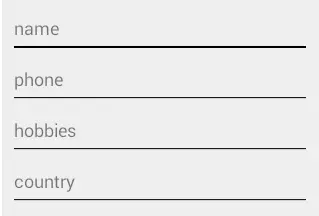
To the interface we will be adding four edittext’s for user to insert values like name, phone, hobbies, country.
<?xml version="1.0" encoding="utf-8"?>
<LinearLayout xmlns:android="https://schemas.android.com/apk/res/android"
    xmlns:tools="https://schemas.android.com/tools"
    android:layout_width="match_parent"
    android:layout_height="match_parent"
    android:orientation="vertical"
    android:padding="10dp">

    <TextView
        android:layout_width="match_parent"
        android:layout_height="wrap_content"
        android:text="Send Mail"
        android:gravity="center"
        android:background="#034879"
        android:layout_marginTop="20dp"
        android:padding="20dp"
        android:textColor="#ffffff"
        android:textAppearance="?android:attr/textAppearanceLarge"
        android:id="@+id/textView" />

    <EditText
        android:layout_width="match_parent"
        android:layout_height="wrap_content"
        android:hint="name"
        android:layout_marginTop="40dp"
        android:id="@+id/nameedit" />

    <EditText
        android:layout_width="match_parent"
        android:layout_height="wrap_content"
        android:hint="phone"
        android:inputType="number"
        android:layout_marginTop="10dp"
        android:id="@+id/phoneedit" />

    <EditText
        android:layout_width="match_parent"
        android:layout_height="wrap_content"
        android:hint="hobbies"
        android:layout_marginTop="10dp"
        android:id="@+id/hobbieedit" />

    <EditText
        android:layout_width="match_parent"
        android:layout_height="wrap_content"
        android:hint="country"
        android:layout_marginTop="10dp"
        android:id="@+id/countryedit" />

    <LinearLayout
        android:orientation="horizontal"
        android:layout_width="match_parent"
        android:layout_height="wrap_content">

    <Button
        android:layout_width="wrap_content"
        android:layout_height="wrap_content"
        android:text="Send Mail"
        android:background="#034879"
        android:textColor="#ffffff"
        android:layout_marginTop="30dp"
        android:layout_weight="1"
        android:id="@+id/mailbtn"/>

    <Button
        android:layout_width="wrap_content"
        android:layout_height="wrap_content"
        android:text="Clear Fields"
        android:background="#034879"
        android:textColor="#ffffff"
        android:layout_marginTop="30dp"
        android:layout_marginLeft="20dp"
        android:layout_weight="1"
        android:id="@+id/clearbtn"/>

    </LinearLayout>

</LinearLayout>
MainActivity.java :
For Android Send Email we need to implement intent by which we can send email .
Add your email address here
email.putExtra(Intent.EXTRA_EMAIL, new String[] { "youremail@gmail.com" });
Subject of mail
email.putExtra(Intent.EXTRA_SUBJECT, "AndroidCoding");
This is the main step as we are adding our edittext data into intent for it to further process and use them in mail.
 email.putExtra(Intent.EXTRA_TEXT,
                "Mail Details"+"\n\n"+"Name -- " + nameedit.getText().toString()+"\n"
                        +"Number -- "+phoneedit.getText().toString()+"\n"
                        +"Hobbies -- "+hobbieedit.getText().toString()+"\n"+"Country -- "+countryedit.getText().toString());
Setting email type
email.setType("message/rfc822");
Starting the email intent
startActivity(Intent.createChooser(email, "Send mail..."));
Intent email = new Intent(Intent.ACTION_SEND);
        email.putExtra(Intent.EXTRA_EMAIL, new String[] { "youremail@gmail.com" }); // Add your email address
        email.putExtra(Intent.EXTRA_SUBJECT, "AndroidCoding");
        email.putExtra(Intent.EXTRA_TEXT,
                "Mail Details"+"\n\n"+"Name -- " + nameedit.getText().toString()+"\n"
                        +"Number -- "+phoneedit.getText().toString()+"\n"
                        +"Hobbies -- "+hobbieedit.getText().toString()+"\n"+"Country -- "+countryedit.getText().toString());


        email.setType("message/rfc822");
        startActivity(Intent.createChooser(email, "Send mail..."));
And now implementing these in our MainActivity.java by using
sendmail();
Android Send Email Full Coding
MainActivity.java
Providing the full code for Android Send Email interrogations.
We can use View binding for better efficiency
package email.androidcoding.abhishek.email;

import android.app.Activity;
import android.content.Intent;
import android.os.Bundle;
import android.view.View;
import android.widget.Button;
import android.widget.EditText;

public class MainActivity extends Activity {

    Button mailbtn,clearbtn;

    EditText nameedit,phoneedit,hobbieedit,countryedit;

    @Override
    protected void onCreate(Bundle savedInstanceState) {
        super.onCreate(savedInstanceState);
        setContentView(R.layout.activity_main);

        mailbtn = (Button)findViewById(R.id.mailbtn);
        clearbtn = (Button)findViewById(R.id.clearbtn);

        nameedit = (EditText)findViewById(R.id.nameedit);
        phoneedit = (EditText)findViewById(R.id.phoneedit);
        hobbieedit = (EditText)findViewById(R.id.hobbieedit);
        countryedit = (EditText)findViewById(R.id.countryedit);

        mailbtn.setOnClickListener(new View.OnClickListener() {
            @Override
            public void onClick(View view) {

                sendmail();

            }
        });

        clearbtn.setOnClickListener(new View.OnClickListener() {
            @Override
            public void onClick(View view) {

                nameedit.setText("");
                phoneedit.setText("");
                hobbieedit.setText("");
                countryedit.setText("");

            }
        });

    }


    public void sendmail(){

        Intent email = new Intent(Intent.ACTION_SEND);
        email.putExtra(Intent.EXTRA_EMAIL, new String[] { "youremail@gmail.com" });
        email.putExtra(Intent.EXTRA_SUBJECT, "Mail");
        email.putExtra(Intent.EXTRA_TEXT,
                "Mail Details"+"\n\n"+"Name -- " + nameedit.getText().toString()+"\n"
                        +"Number -- "+phoneedit.getText().toString()+"\n"
                        +"Hobbies -- "+hobbieedit.getText().toString()+"\n"+"Country -- "+countryedit.getText().toString());


        email.setType("message/rfc822");
        startActivity(Intent.createChooser(email, "Send mail..."));

    }


}
Kotlin Code :
Here we are having the code for sending email using Kotlin.
package com.abhi.androidemail

import android.content.Intent
import android.os.Bundle
import android.view.View
import androidx.appcompat.app.AppCompatActivity
import kotlinx.android.synthetic.main.activity_main.*


class MainActivity : AppCompatActivity(), View.OnClickListener {
    override fun onCreate(savedInstanceState: Bundle?) {
        super.onCreate(savedInstanceState)
        setContentView(R.layout.activity_main)


        clearbtn.setOnClickListener(this)
        mailbtn.setOnClickListener(this)

    }

    override fun onClick(v: View?) {

        when(v?.id){

            R.id.mailbtn -> { sendmail() }
            R.id.clearbtn -> { clearFields() }

        }

    }

    private fun clearFields() {
        nameedit.setText("");
        phoneedit.setText("");
        hobbieedit.setText("");
        countryedit.setText("");
    }


    private fun sendmail() {
        val email = Intent(Intent.ACTION_SEND)
        email.putExtra(Intent.EXTRA_EMAIL, arrayOf("youremail@gmail.com"))
        email.putExtra(Intent.EXTRA_SUBJECT, "Mail")
        email.putExtra(
            Intent.EXTRA_TEXT,
            """
                Mail Details

                Name -- ${nameedit.getText().toString()}
                Number -- ${phoneedit.getText().toString()}
                Hobbies --
                """.trimIndent() + hobbieedit.getText()
                .toString() + "\n" + "Country -- " + countryedit.getText().toString()
        )
        email.type = "message/rfc822"
        startActivity(Intent.createChooser(email, "Send mail..."))
    }

}
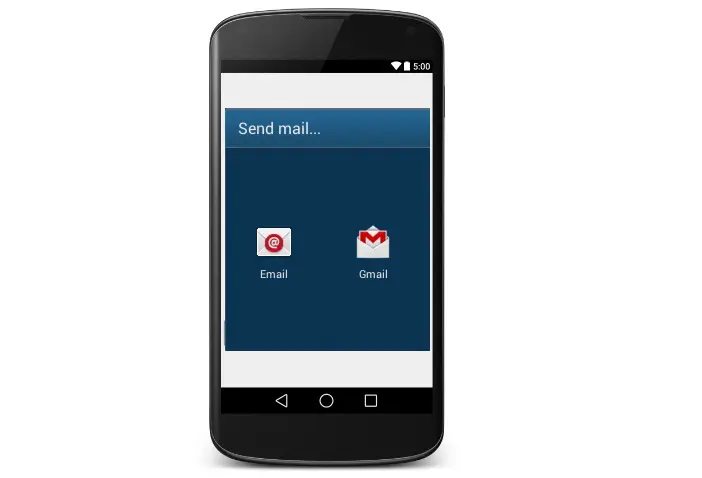
Android Send Email Output :
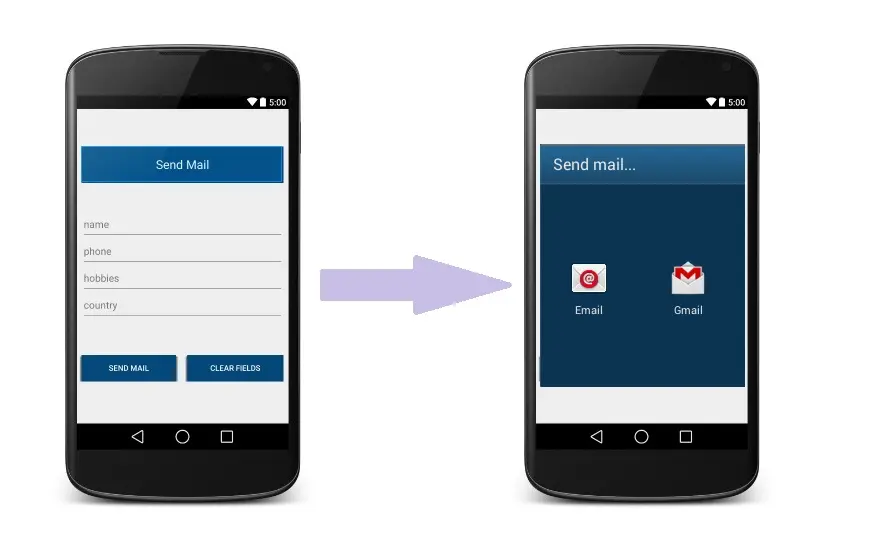
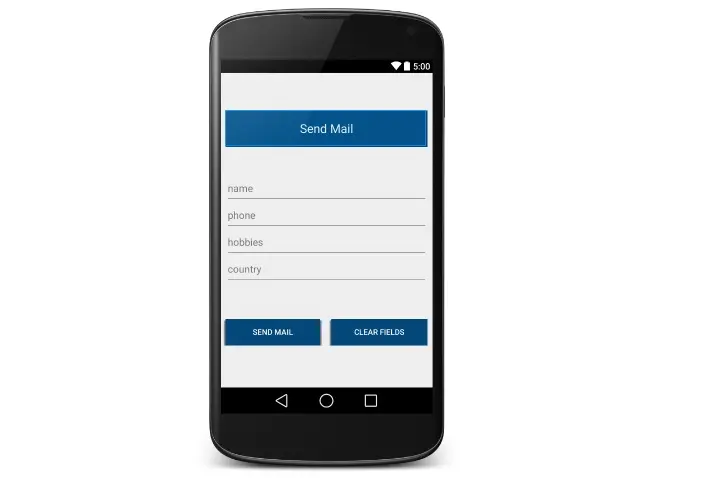
This screen depicts Android Send Email using email intent.
If you have any queries on this tutorial on Android Send Email let us know in the comment section below.
For more interesting tutorials on android do share and like this tutorial.