
Table of Contents
Android bottom navigation :
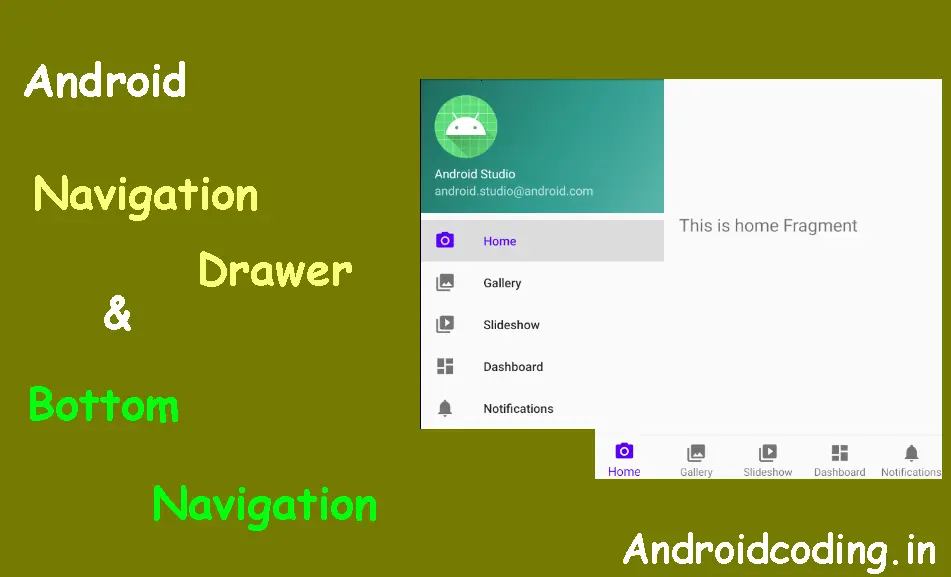
In continuation to the previous tutorial on navigation drawer & android bottom navigation, we will see the code for remaining fragments, their layout files and view models in this part of the blog.
https://stage.androidcoding.in/2020/05/21/android-bottom-navigation-and-navigation-drawer-part-1/
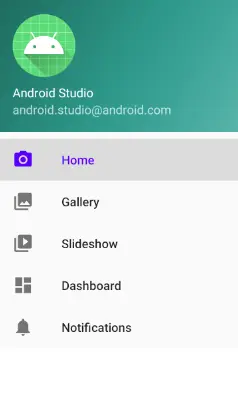
Navigation drawer is found almost in every app like gmail, youtube, food delivery apps, news apps and many other app where there is a login mechanism mostly.
Navigation drawer consists header part consists of the user related information and middle part consists of app modules and finally tail part consists of logout and app version details, author related details.
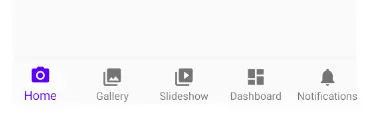
 Android bottom navigation may consist of either icons or both icons and text showing the modules to be navigated, also they can be highlighted to show the user on which tab they are present.
For more interesting tutorials on android navigation drawer may visit -> https://stage.androidcoding.in/?s=navigation
Project Structure :
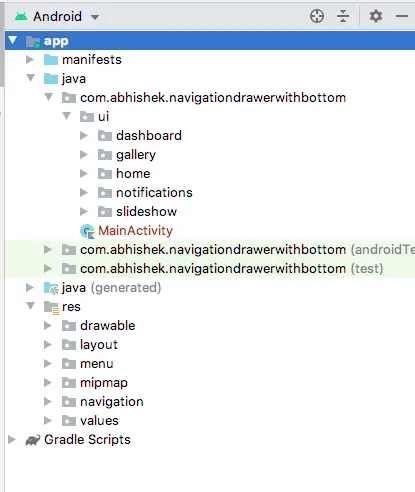
Project structure depicting the flow of the files used in the project navigation drawer & android bottom navigation
fragment_dashboard.xml
Add a textview in fragment dashboard showing title.
<?xml version="1.0" encoding="utf-8"?>
<androidx.constraintlayout.widget.ConstraintLayout
xmlns:android="https://schemas.android.com/apk/res/android"
    xmlns:app="https://schemas.android.com/apk/res-auto"
    xmlns:tools="https://schemas.android.com/tools"
    android:layout_width="match_parent"
    android:layout_height="match_parent"
    tools:context=".ui.dashboard.DashboardFragment">

    <TextView
        android:id="@+id/text_dashboard"
        android:layout_width="match_parent"
        android:layout_height="wrap_content"
        android:layout_marginStart="8dp"
        android:layout_marginTop="8dp"
        android:layout_marginEnd="8dp"
        android:textAlignment="center"
        android:textSize="20sp"
        app:layout_constraintBottom_toBottomOf="parent"
        app:layout_constraintEnd_toEndOf="parent"
        app:layout_constraintStart_toStartOf="parent"
        app:layout_constraintTop_toTopOf="parent" />
</androidx.constraintlayout.widget.ConstraintLayout>
DashboardViewModel.class
Here we are using livedata to set the text values
import androidx.lifecycle.LiveData
import androidx.lifecycle.MutableLiveData
import androidx.lifecycle.ViewModel

class DashboardViewModel : ViewModel() {

    private val _text = MutableLiveData<String>().apply {
        value = "This is dashboard Fragment"
    }
    val text: LiveData<String> = _text
}
DashboardFragment.class
Here we are making necessary initialization for fragment dashboard
import android.os.Bundle
import android.view.LayoutInflater
import android.view.View
import android.view.ViewGroup
import android.widget.TextView
import androidx.fragment.app.Fragment
import androidx.lifecycle.Observer
import androidx.lifecycle.ViewModelProviders
import com.abhishek.navigationdrawerwithbottom.R

class DashboardFragment : Fragment() {

    private lateinit var dashboardViewModel: DashboardViewModel

    override fun onCreateView(
        inflater: LayoutInflater,
        container: ViewGroup?,
        savedInstanceState: Bundle?
    ): View? {
        dashboardViewModel =
            ViewModelProviders.of(this).get(DashboardViewModel::class.java)
        val root = inflater.inflate(R.layout.fragment_dashboard, container, false)
        val textView: TextView = root.findViewById(R.id.text_dashboard)
        dashboardViewModel.text.observe(viewLifecycleOwner, Observer {
            textView.text = it
        })
        return root
    }
}
fragment_gallery.xml
Add a textview in fragment dashboard showing title.
<?xml version="1.0" encoding="utf-8"?>
<androidx.constraintlayout.widget.ConstraintLayout xmlns:android="https://schemas.android.com/apk/res/android"
    xmlns:app="https://schemas.android.com/apk/res-auto"
    xmlns:tools="https://schemas.android.com/tools"
    android:layout_width="match_parent"
    android:layout_height="match_parent"
    tools:context=".ui.gallery.GalleryFragment">

    <TextView
        android:id="@+id/text_gallery"
        android:layout_width="match_parent"
        android:layout_height="wrap_content"
        android:layout_marginStart="8dp"
        android:layout_marginTop="8dp"
        android:layout_marginEnd="8dp"
        android:textAlignment="center"
        android:textSize="20sp"
        app:layout_constraintBottom_toBottomOf="parent"
        app:layout_constraintEnd_toEndOf="parent"
        app:layout_constraintStart_toStartOf="parent"
        app:layout_constraintTop_toTopOf="parent" />
</androidx.constraintlayout.widget.ConstraintLayout>
GalleryViewModel.class
Here we are using live data to set the text values in gallery view model
import androidx.lifecycle.LiveData
import androidx.lifecycle.MutableLiveData
import androidx.lifecycle.ViewModel

class GalleryViewModel : ViewModel() {

    private val _text = MutableLiveData<String>().apply {
        value = "This is gallery Fragment"
    }
    val text: LiveData<String> = _text
}
GalleryFragment.class
Here we are making necessary initialization for fragment gallery
import android.os.Bundle
import android.view.LayoutInflater
import android.view.View
import android.view.ViewGroup
import android.widget.TextView
import androidx.fragment.app.Fragment
import androidx.lifecycle.Observer
import androidx.lifecycle.ViewModelProviders
import com.abhishek.navigationdrawerwithbottom.R

class GalleryFragment : Fragment() {

    private lateinit var galleryViewModel: GalleryViewModel

    override fun onCreateView(
            inflater: LayoutInflater,
            container: ViewGroup?,
            savedInstanceState: Bundle?
    ): View? {
        galleryViewModel =
                ViewModelProviders.of(this).get(GalleryViewModel::class.java)
        val root = inflater.inflate(R.layout.fragment_gallery, container, false)
        val textView: TextView = root.findViewById(R.id.text_gallery)
        galleryViewModel.text.observe(viewLifecycleOwner, Observer {
            textView.text = it
        })
        return root
    }
}
fragment_notifications.xml
Add a textview in fragment dashboard showing title.
<?xml version="1.0" encoding="utf-8"?>
<androidx.constraintlayout.widget.ConstraintLayout xmlns:android="https://schemas.android.com/apk/res/android"
    xmlns:app="https://schemas.android.com/apk/res-auto"
    xmlns:tools="https://schemas.android.com/tools"
    android:layout_width="match_parent"
    android:layout_height="match_parent"
    tools:context=".ui.notifications.NotificationsFragment">

    <TextView
        android:id="@+id/text_notifications"
        android:layout_width="match_parent"
        android:layout_height="wrap_content"
        android:layout_marginStart="8dp"
        android:layout_marginTop="8dp"
        android:layout_marginEnd="8dp"
        android:textSize="20sp"
        app:layout_constraintBottom_toBottomOf="parent"
        app:layout_constraintEnd_toEndOf="parent"
        app:layout_constraintStart_toStartOf="parent"
        app:layout_constraintTop_toTopOf="parent" />
</androidx.constraintlayout.widget.ConstraintLayout>
NotificationsViewModel.class
Notification module to publish notifications
import androidx.lifecycle.LiveData
import androidx.lifecycle.MutableLiveData
import androidx.lifecycle.ViewModel

class NotificationsViewModel : ViewModel() {

    private val _text = MutableLiveData<String>().apply {
        value = "This is notifications Fragment"
    }
    val text: LiveData<String> = _text
}
NotificationsFragment.class
Here we are making necessary initialization for fragment notification
import android.os.Bundle
import android.view.LayoutInflater
import android.view.View
import android.view.ViewGroup
import android.widget.TextView
import androidx.fragment.app.Fragment
import androidx.lifecycle.Observer
import androidx.lifecycle.ViewModelProviders
import com.abhishek.navigationdrawerwithbottom.R

class NotificationsFragment : Fragment() {

    private lateinit var notificationsViewModel: NotificationsViewModel

    override fun onCreateView(
        inflater: LayoutInflater,
        container: ViewGroup?,
        savedInstanceState: Bundle?
    ): View? {
        notificationsViewModel =
            ViewModelProviders.of(this).get(NotificationsViewModel::class.java)
        val root = inflater.inflate(R.layout.fragment_notifications, container, false)
        val textView: TextView = root.findViewById(R.id.text_notifications)
        notificationsViewModel.text.observe(viewLifecycleOwner, Observer {
            textView.text = it
        })
        return root
    }
}
fragment_slideshow.xml
Add a textview in fragment dashboard showing title.
<?xml version="1.0" encoding="utf-8"?>
<androidx.constraintlayout.widget.ConstraintLayout xmlns:android="https://schemas.android.com/apk/res/android"
    xmlns:app="https://schemas.android.com/apk/res-auto"
    xmlns:tools="https://schemas.android.com/tools"
    android:layout_width="match_parent"
    android:layout_height="match_parent"
    tools:context=".ui.slideshow.SlideshowFragment">

    <TextView
        android:id="@+id/text_slideshow"
        android:layout_width="match_parent"
        android:layout_height="wrap_content"
        android:layout_marginStart="8dp"
        android:layout_marginTop="8dp"
        android:layout_marginEnd="8dp"
        android:textAlignment="center"
        android:textSize="20sp"
        app:layout_constraintBottom_toBottomOf="parent"
        app:layout_constraintEnd_toEndOf="parent"
        app:layout_constraintStart_toStartOf="parent"
        app:layout_constraintTop_toTopOf="parent" />
</androidx.constraintlayout.widget.ConstraintLayout>
SlideshowViewModel.class
Here we are using livedata to set the text values in slideshow view model
import androidx.lifecycle.LiveData
import androidx.lifecycle.MutableLiveData
import androidx.lifecycle.ViewModel

class SlideshowViewModel : ViewModel() {

    private val _text = MutableLiveData<String>().apply {
        value = "This is slideshow Fragment"
    }
    val text: LiveData<String> = _text
}
SlideshowFragment.class
Here we are making necessary initialization for fragment slideshow
import android.os.Bundle
import android.view.LayoutInflater
import android.view.View
import android.view.ViewGroup
import android.widget.TextView
import androidx.fragment.app.Fragment
import androidx.lifecycle.Observer
import androidx.lifecycle.ViewModelProviders
import com.abhishek.navigationdrawerwithbottom.R

class SlideshowFragment : Fragment() {

    private lateinit var slideshowViewModel: SlideshowViewModel

    override fun onCreateView(
            inflater: LayoutInflater,
            container: ViewGroup?,
            savedInstanceState: Bundle?
    ): View? {
        slideshowViewModel =
                ViewModelProviders.of(this).get(SlideshowViewModel::class.java)
        val root = inflater.inflate(R.layout.fragment_slideshow, container, false)
        val textView: TextView = root.findViewById(R.id.text_slideshow)
        slideshowViewModel.text.observe(viewLifecycleOwner, Observer {
            textView.text = it
        })
        return root
    }
}
If you have any queries in this on android bottom navigation tutorial let us know in the comment section and also like, share the tutorials for getting more interesting updates.